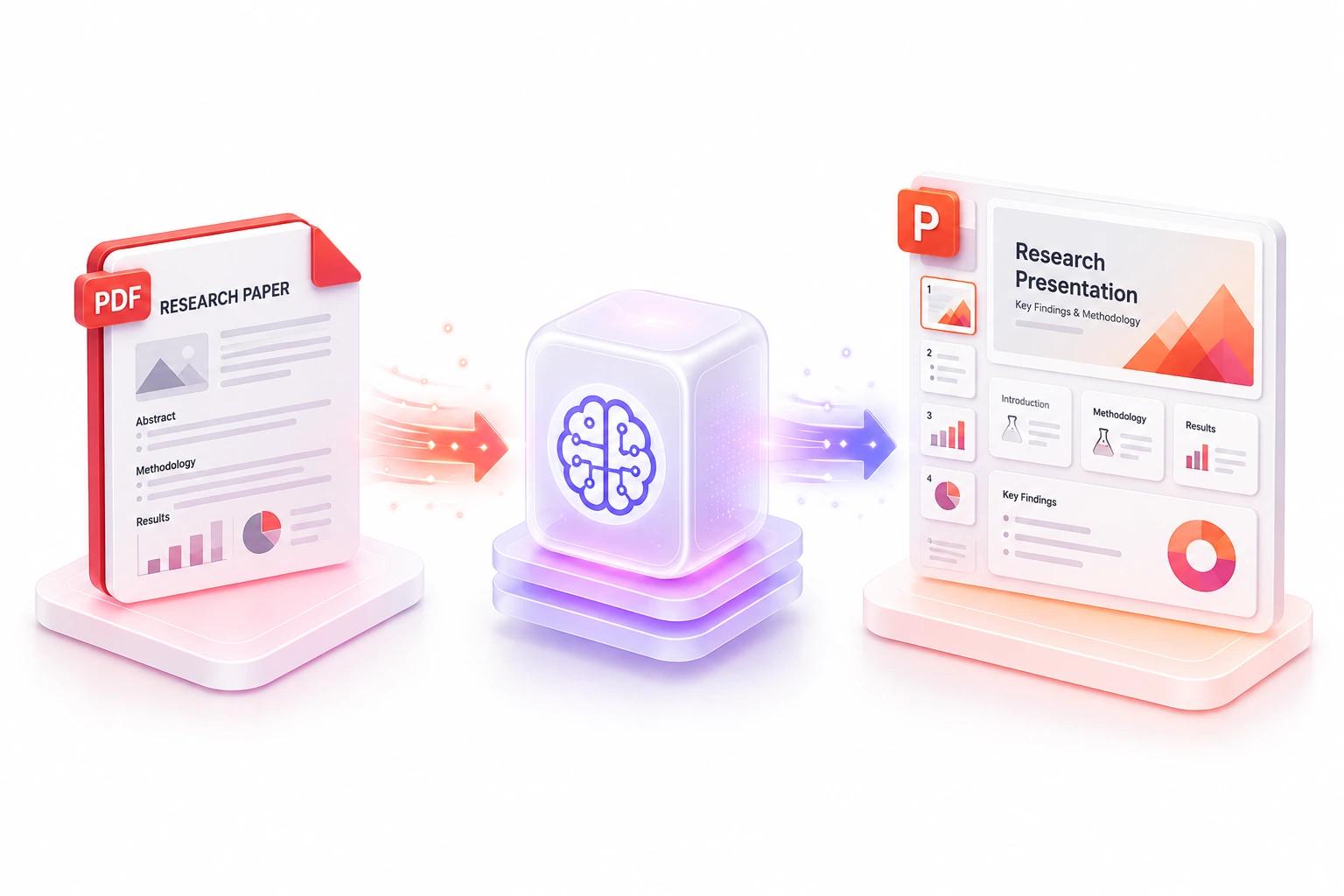
Somewhere on your computer is a PDF that took someone weeks to write — a market research report, a quarterly review, a strategy document, a whitepaper — and it's probably never been opened as a presentation. It exists as a document because that's how it was written, not because that's the best format for every audience that needs it.
Turning a PDF into a deck used to mean opening PowerPoint, reading back through the report, deciding what's slide-worthy, retyping it, and then spending another hour making it look like something you'd actually present. For a 40-page report, that's easily a half-day of work — for content that's already been written once.
AI has mostly closed that gap. Here's how the conversion actually works, what to prepare beforehand, and what to check afterward.
What Happens When AI Converts a PDF to Slides
Modern document-to-presentation tools don't just take screenshots of PDF pages and drop them onto slides — that approach has existed for years and produces unusable results. Instead, AI conversion works in a few distinct steps.
First, the AI reads the PDF and parses its structure — headings, sections, paragraphs, tables, charts, and images — rather than treating the document as a flat block of text. This is why well-structured PDFs with clear headings convert significantly better than dense, unformatted documents.
Second, it identifies the hierarchy of information: what's a main point versus supporting detail, what's a key statistic versus background context. A 12-page research report doesn't need 12 slides — it needs the right 10-15 slides that carry the argument.
Third, it restructures that information into slide-appropriate copy — condensed headlines and bullet points instead of full paragraphs — and applies a design template automatically.
Step 1: Choose the Right PDF
Not every PDF converts equally well. Documents with clear headings, logical section breaks, and a defined structure (executive summary, findings, recommendations) give the AI much more to work with than a single dense block of unstructured text.
If you have a choice between source documents, prioritize ones that already have:
- Clear section headings (even just bolded text functions as a signal) - Bullet points or numbered lists for key findings - Tables or charts with labeled data - A logical narrative arc — problem, analysis, conclusion, recommendation
If your source PDF is unstructured — say, a wall of text with no headings — consider adding basic structure (headings, bullets) before conversion. A few minutes of cleanup can meaningfully improve the output.
Step 2: Specify Your Audience and Purpose
One detail that's easy to skip but significantly affects output quality: tell the AI who the presentation is for. A 50-page market research report converted for a board presentation needs different content density than the same report converted into a team briefing or a client-facing sales deck.
If your tool allows it, specify:
- The audience — executives, a technical team, external clients, a general audience - The purpose — a decision-making meeting, a training session, a sales pitch - The desired length — a tight 8-10 slide overview versus a more thorough 20-slide walkthrough
This single step often determines whether the AI produces an executive summary or a slide-by-slide reproduction of the report's table of contents.
Step 3: Upload and Convert
This is the part that takes seconds. Upload your PDF (or paste in the report's text directly) to an AI presentation maker, and the tool extracts the key content, builds a slide sequence, and applies a design template — typically producing a complete draft in under a minute.
What you'll get back is a structured first draft: a title slide, an overview or agenda slide, a sequence of content slides covering the report's main sections, and usually a closing or recommendations slide.
Step 4: Check Data Fidelity
This is the step that matters most and gets skipped most often.
AI conversion tools are generally strong at restructuring prose, but tables, charts, and numerical data are where things can go wrong. Decimal precision can get lost, table columns can be misaligned, and complex charts may be simplified or misrepresented.
Before you present anything, go through each slide that contains numbers, percentages, or data visualizations and compare it against the source PDF. This is especially important for financial figures, statistics that will be quoted directly, or any chart where the relationship between data points (not just the numbers themselves) carries meaning.
Step 5: Refine the Narrative Flow
Once you've confirmed the data is accurate, review the deck for narrative flow — not just individual slide content, but how the slides connect to each other.
A few things worth checking:
- Does the opening slide frame the "why" before diving into details? - Are related findings grouped together, even if they were in separate sections of the original PDF? - Does the deck build toward a conclusion or recommendation, rather than just ending when the source document does? - Are there slides that duplicate information, or sections that got compressed into a single dense slide that should be split?
Most AI tools allow inline editing at this stage — adjusting slide text, reordering slides, or asking the AI to expand or condense specific sections without rebuilding from scratch.
Step 6: Polish Visual Design
By this point, your content should be accurate and well-structured. The final step is making sure it looks consistent — matching your brand colors and fonts if you're presenting externally, checking that image and chart placement supports rather than crowds the text, and confirming the deck reads well in presentation mode, not just in the editor view.
Common Use Cases Worth Knowing
This workflow isn't limited to one type of document. Some of the most common PDF-to-presentation conversions include:
Research reports becoming conference or stakeholder presentations, where the AI extracts methodology, findings, and conclusions into a presentable structure. Quarterly or annual reports becoming executive summaries, condensing dozens of pages into a 10-15 slide overview. Whitepapers becoming webinar decks, with the AI highlighting key arguments and supporting data. Long-form guides or documentation becoming training or onboarding decks, broken into digestible sections.
In each case, the underlying skill is the same: identifying what matters most in a long document and restructuring it for an audience that's seeing it for the first time, in a format built for presentation rather than reading.
Final Thoughts
The report you're sitting on isn't finished work waiting to be repurposed someday — it's a presentation that hasn't been built yet. The writing, research, and analysis are already done. What's missing is the format, and that's the part AI handles fastest.
Start with a well-structured PDF, tell the tool who it's for, and treat the AI output as a strong first draft rather than a finished deck — then spend your time on the parts that actually need a human eye: data accuracy and narrative flow. Upload your first report and see how much of that half-day of work disappears.